Showing posts with label Features. Show all posts

Saturday, March 13, 2010

Facebook

Here are a few ways to use facebook with CaringMeals:
1. Become a Fan
Keep up-to-date on the latest news and announcements.
2. Invite your Friends to Bring Meals
You can "share" your plan on facebook and invite your facebook friends to bring a meal directly from CaringMeals. On the "Invite Friends" page, look at the facebook section for a link to facebook.
In the future, we are looking at further integration with facebook including:

  • Posting updates to your feed
  • Profile Pictures
  • Signon with facebook email/password
If you have suggestions or questions regarding facebook and CaringMeals, let us know!

Tuesday, December 8, 2009

Importing Email Addresses

Virtually every major email system (Yahoo, Google, and Hotmail) can export email addresses (Contacts) to an Outlook CSV format. CaringMeals can now import Outlook CSV files, so you can save typing and quickly invite all your Friends to bring meals!

Here are the steps:

  1. Export your Contacts to an Outlook CSV file. When prompted to save the file, choose your "My Documents" or "Documents" folder.
      Here are examples from the 3 major email providers:
    • Gmail

      • Click Contacts | Export

      • Select Outlook CSV and click "Export"


    • Yahoo

      • Open your Contact List and select Export

      • Click Export Now next to "Microsoft Outlook"


    • Hotmail
      Open your Contacts and Click Manage | Export

    • For other email systems, look for an "Export" function, and select "Outlook CSV" when asked for the format to export. If you have questions, please check with your email provider.


  2. Login to CaringMeals, Open the Plan you are coordinating, and click INVITE FRIENDS TO HELP. You will see this screen:

  3. Click the "Choose File" button, and select the file from step #1 in your "My Documents", "Documents", or whichever folder you saved the file.

  4. Click UPLOAD, and then you should see a screen like this:If you see one of the following messages:
    - File too big
    - No Addresses found
    - Not a CSV file
    Please correct your file, and try again.

  5. Enter a note to your Friends, and then click SEND!

This is another feature which was requested by our YOU, our users - Keep sending us your feedback and suggestions! We want to keep providing features which help you coordinate more meals, in less time, with less stress!

Wednesday, December 2, 2009

Who did I Invite?

As your friend list grows, sometimes you forget who you already invited to a Plan. No need to worry - when you click "INVITE FRIENDS TO HELP" and look at your list of friends, the "@" will be your guide. If you see "@" next to your Friend's name, they have already been invited. (Even if someone else invited that friend to the Plan, you will see the "@" symbol!)

Tuesday, November 24, 2009

Do I have to Register??

On CaringMeals, we ask you to create a username and password, before entering the site. Sometimes this may feel like a hassle, but here are all the benefits that we can deliver because you register:

- Friends/Address book: The people on your Friends list on CaringMeals are your addressbook. When it comes time to invite others to bring meals, you know exactly who in your circle of Friends can bring meals. You can even find and add new friends on CaringMeals, which you might not have in your personal email list.

- Security: No anonymous users means that you can control who sees your private information. On other sites that do not require registration, people can come and go, but there is no real record of who viewed your information - CaringMeals is secure.

- Friends' Activity Feed: On your "My Meals" page, you will see a stream of activity (similar to facebook), which shows all of the meals, comments, and plans your friends are posting on CaringMeals. You can keep up on the lastest news, and find opportunities to help bring meals.

- Email Delivery: By verifying your email, we can ensure that the important meal reminders will go to a valid email address (not a mistyped address).

- Saved Settings: Under your profile ("My Profile" link), you can save simple information about yourself such as full name, phone, food likes (so others know what to cook for you), and email preferences. Because this is stored in our database, you don't have to retype this information each time you visit CaringMeals.

- Personalized: At the top of your screen, you will see Recently Viewed Plans. Because you login, we can show you the Plans you viewed most recently. Just one-click, and you can see all the details. If you are coordinating several Plans, this is a great time-saver.

The convenience of not registering may appear to be an advantage, but it leaves many features lacking. By completing our quick registration process, CaringMeals becomes a secure, reliable, and fun place to coordinate all your meals!

If you have any questions, please feel free to contact us at caringmeals@caringmeals.com.

Friday, November 20, 2009

More Friends!

The new "Copy to My Friends" feature is one of the most exciting and powerful tools on CaringMeals. Read on, and I'm sure you will see why...

Here is a scenario:
1. Your Friend coordinates meals on CaringMeals for someone in your group.
2. A few weeks later, another person in your group needs meals, and you would like to coordinate the meals this time.
3. You want to invite everyone who helped the first time, but you don't want to have to find and type all of their email addresses.
What do you do??

There is a Solution!
1. Open the Plan your Friend coordinated before.
2. On the right side, under the "Activity Summary" area, you will see the link "Copy to My Friends" in the Visited This Page section

(This link is not visible to the Coordinator, since all of the people on the list are already friends with the Coordinator)
3. Click "Copy to My Friends" and in a few seconds, all of the Friends listed below will be copied to your Friends list.

The next time you want to coordinate meals, you will be able to quickly invite all of the Friends who helped with the previous plan. Without knowing or typing an email address, you can instantly expand your network of Friends.
Just another way CaringMeals helps you coordinate more meals, in less time, with less stress!

Tuesday, November 17, 2009

Print a Sigup Sheet

Ideally, when you use CaringMeals, you can reduce or eliminate paper signup sheets and phone tag. However, there are times that having a paper print out of the meal schedule can come in handy (especially when your friends are not yet Internet savvy).

Now, when you visit a Plan, at the top of the page you will see a "Print" link. That link will take you to a page which does two things:
1. The page is printer-friendly, so it will look clean on paper. As soon as the page opens, you will be prompted to print.
2. For the dates that are not filled, you will see lines to write Name, Phone, and Email for someone to signup.

You can pass this printout around at a get-together, then when you come back to your computer either
- Signup "On Behalf" of the people on the printout
- If they provided an email address, send them an invitation from CaringMeals.

This is just another way to help you coordinate more meals, in less time, with less stress.

Sunday, November 15, 2009

Public or Private

You now have a choice when using CaringMeals. We hope it isn't as difficult as choosing between Paper and Plastic, but you can now choose between "Public" and "Private" Plans. Let's see what it can do for you...

On CaringMeals, the main object we are trying to protect is the "Plan" which contains all of the details about who needs then meals, when they are needed, where to bring the meals, and so on. In most cases, this is contains information that should be private among friends, such as emails, phone numbers, addresses, and even health conditions.

With the introduction of our "Public" Plan option, you now have two security choices when it comes to security on CaringMeals:
- Private: This is the default setting and is the most secure. Only people who are Friends of the Plan Coordinator can view a plan. If someone, who is not a Friend of the Coordinator, tries to view a Plan, they will have to send a Friend request to the Coordinator. Once the Coordinator confirms the request, the requestor can view the Plan.
These extra steps add security by preventing unauthorized access, but they also add some complexity to the whole process.

- Public: A Public Plan can be viewed by any registered user - They do not have to be a Friend of the Coordinator. This eliminates the need to send and confirm Friend Requests to gain access to a Plan. From a security standpoint, it means that any one who can get the URL (http://caringmeals.com/plan/YourMeals) can view your Plan.
Each person who visits the Plan will automatically be added to the Friend list of the Coordinator.
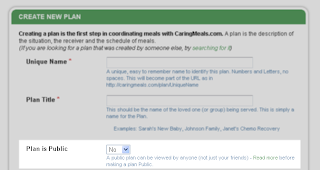


How do I decide which setting to use?
- If the Coordinator will invite people directly from CaringMeals using the "INVITE FRIENDS" button, each invited person is automatically added as a Friend, and they will never have to send a friend request. Choosing a "Private" Plan is the the easy and secure option.
- If you want to invite people using a mailing list, facebook, or at a face-to-face meeting, you may want to choose a "Public" plan. People that try to view your Plan will immediately be able to view the information and signup more quickly to bring a meal. At anytime, you can switch from Public to Private - The users who have already visited the Plan will be able to return at anytime, but new people who are not friends of the Coordinator, will have to send a Friend request.

If you have any doubts or concerns, choose the "Private" option. You can also contact us if you would like further assistance http://www.caringmeals.com/contact.php.

Finding the right balance between security and openness (user-friendliness) is typically a tricky balance. A 100% secure system would have no users, but a totally user friendly system would likely have very little security. Our Public/Private option gives you the power to control and adjust that balance.

Thursday, November 5, 2009

No Comments?

Comments are one of the best ways to keep everyone informed of the latest news on your plan.
Here are a few notes on using Comments:
- Comments are emailed to the coordinator and each person who signed up to bring a meal. (You will not receive an email notification of your own comment)
- The comments are visible to everyone who can view the plan (All of the coordinator's friends)
- When your friends go to http://caringmeals.com/mymeals.php, they will see all of your comments under their "Friends' Activity" tab.

We are working on ways to further improve comments as a communication tool - stay tuned!

Saturday, October 31, 2009

What do You Like?

One of the challenges in bringing a meal for someone else is choosing foods that they will like. Now, when you signup or edit your profile, you can tell everyone what you like (and don't):


How do you use this information? On a meal plan, everyone will be able to see the likes/dislikes of each receiver (if they updated their profile). This will make it easier to choose and prepare a meal everyone will enjoy.

Go ahead and update your profile today!

Sunday, October 25, 2009

No Email, No Problem

Do you know someone who wants to bring a meal, but isn't an email user? No problem. With our "On Behalf" feature, you can signup on behalf of someone else. Here's how it works:

1. Let's pretend, that Carla tells me that she wants to bring a meal on November 2nd. She isn't an email user, so she can't access CaringMeals.com and sign up herself.

2. I login to CaringMeals.com, open the plan, and click "BRING MEAL" next to November 2nd.

3. I'll see a screen as shown in the picture above. I enter "Carla" in the box, and her phone number in the comments (so she can be contacted if needed).

That's it! When others view the meal schedule, they'll see something like this:

Everyone can see that I signed up, but Carla is the person actually bringing the meal.

Sunday, September 20, 2009

The Meal Network


As you build up a network of friends on CaringMeals, you will find a lot of exciting information on the My Meals page. Besides the tabs for meals you are coordinating, watching and bringing, there is now a list of your friends' activities on CaringMeals.

If you are on someone's friend list, their activity will appear on your page.
Here are two quick tips for using this page:
1. If you see a friend's name, click on it. You will be able to add them to your friend list, which will save time when you need to coordinate meals. In no time, you will have a large list of friends, all without ever typing an email address.
2. You may see a plan for someone you know but were not invited to. You can click on the plan link and send a friend request to the coordinator. This has really exciting possibilities for connecting people and bring together communities.

Friday, August 7, 2009

Changed your mind?

Didn't know what you were going to bring when you signed up to bring a meal? Changed your mind about what you are cooking? No problem.

Now, when you move your mouse over your comment, you will see a pencil/paper icon. Just click, and a small dialog box will appear with a place to edit your comment. In addition, Plan coordinators can edit all comments on their Plans. Enjoy!


Thursday, April 30, 2009

My Friends are Your Friends

One of the most powerful features of CaringMeals is the ability to easily find friends.
Wherever you see a person's name, you can click on it and see their profile information (if you are not their friend, you will have to send a friend request). As you scroll down the page on your friend's profile you will see their list of friends. See someone you know? Just click "Send Friend Request" and they will be added to your friend list!

This can help when you share meal coordinating responsibilities with someone else. If your friend coordinates a Plan and invites 30 people, you can simply click on your friend's name (Under "Who Is Coordinating These Meals?") and send friend requests to the people you know.
This can save time entering email addresses, and help you find new friends who can help bring meals!